What a Standard User Can Still See After You Restrict the Entra Admin Center
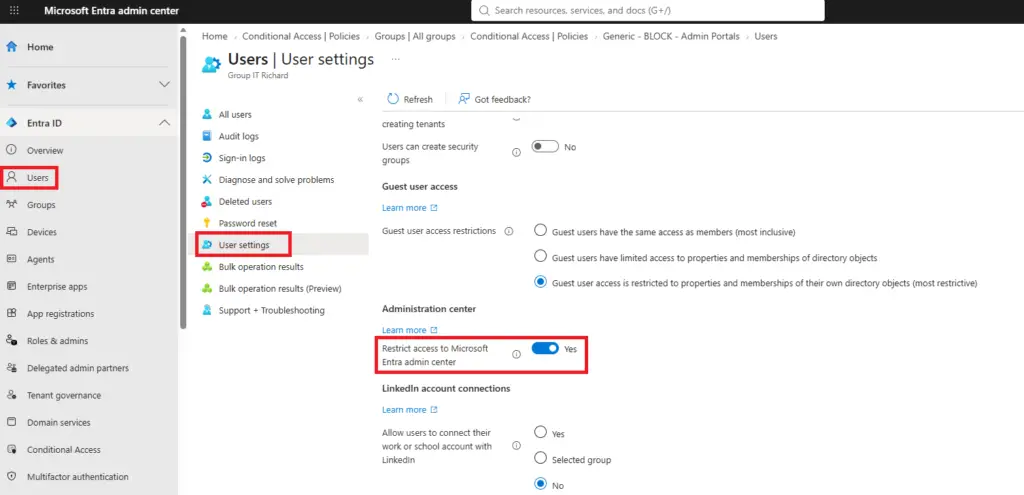
I’ve already written about why the Restrict access to Microsoft Entra admin center toggle isn’t a security boundary on its own — that post covers what it blocks and why Conditional Access on the Windows Azure Service Management API is the control that actually matters. This one picks up where that left off: even after you’ve flipped the toggle and layered on a Conditional Access block, what can a standard, unprivileged user still find just by typing into the search bar?
Key takeaways
The admin center restriction and a Conditional Access block on Microsoft Admin Portals stop a standard user from loading the portal UI — they don’t stop the global search bar from returning group names and device records the user has no business seeing. Before you treat either control as sufficient, check what a real non-admin account can actually find through search in your own tenant. And know the difference between the two Conditional Access targets: Microsoft Admin Portals covers interactive sign-in to the admin center UI; Windows Azure Service Management API covers the broader management plane, including PowerShell, CLI, and ARM — they overlap but aren’t the same control, and which one you need depends on what you’re actually trying to stop.
Step 1: the restriction toggle, enabled
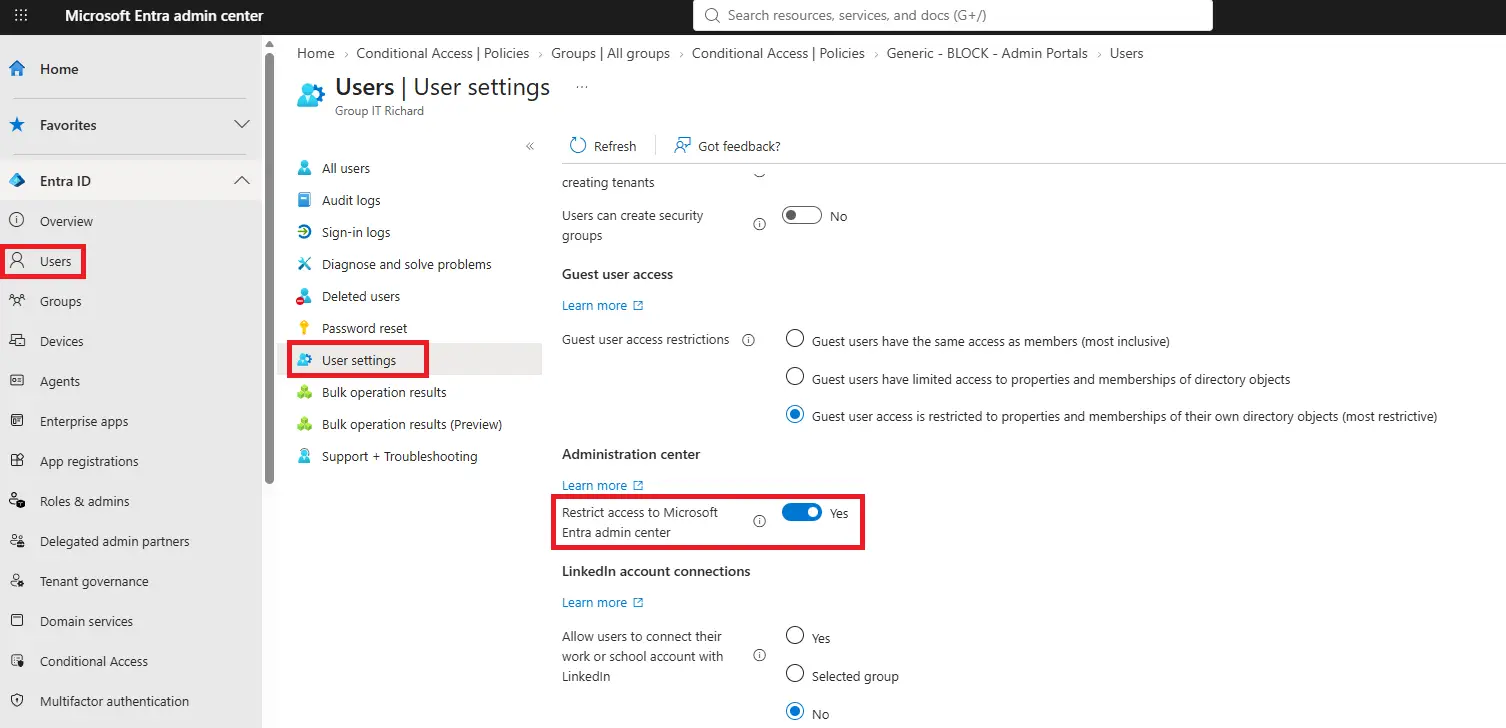
Same setting as my last post, same place — Entra ID > Users > User settings > Administration center > Restrict access to Microsoft Entra admin center, set to Yes.
What the search bar still hands over
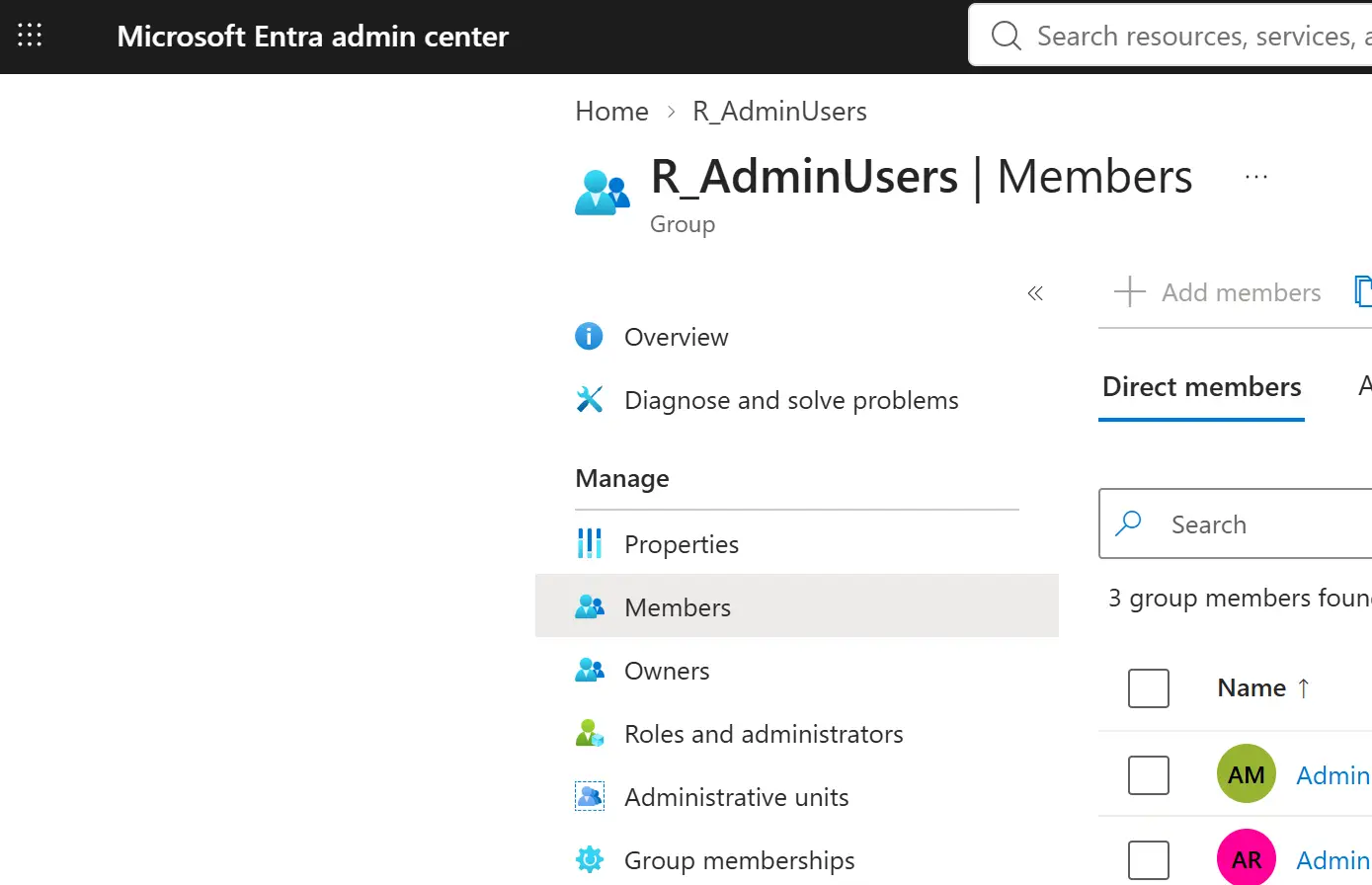
With the restriction active, sign in as a standard user and try the global search bar anyway. Searching a partial group name is enough to surface it — no admin role required, no portal page to navigate to, just the search box in the header.

Open that result and the membership list is right there — who’s in the group that, by its name, is almost certainly the tenant’s admin population.
Devices work the same way. A search for a device type returns a live match from the directory:
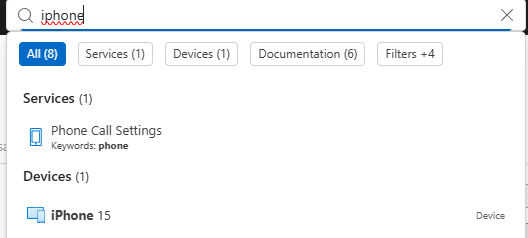
None of this requires bypassing the restriction toggle or the Conditional Access policy. Search isn’t a portal page the policy was built to gate — it’s a different surface, and it’s worth confirming that directly in your own tenant rather than assuming a UI restriction scopes everything a user can type into a search box.
Microsoft Admin Portals vs. Windows Azure Service Management API
If you’re building the Conditional Access side of this (see my prior post for the full policy walkthrough), it matters which cloud app you target. Microsoft Admin Portals governs interactive sign-in to the Microsoft 365, Entra, Intune, and Teams admin center UIs specifically. Windows Azure Service Management API is the broader management-plane target — it covers the Azure portal (which includes the Entra admin center), Azure PowerShell, the Azure CLI, and direct ARM API calls. They overlap, but a policy scoped only to Admin Portals won’t stop someone from reaching the same data through PowerShell or Graph, which is exactly the gap my last post walked through. If your goal is to close the API/PowerShell path, Admin Portals alone isn’t it — you need Windows Azure Service Management API in the policy too.
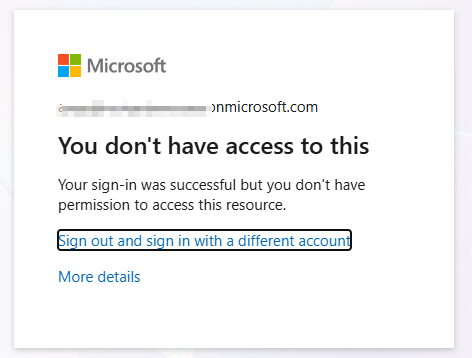
Validating the block
Whichever target you use, build it in report-only first, confirm the sign-in logs show what you expect, then switch it on and test with both a standard account and an authorized admin account. A real denial looks like this:
Bottom line
Two controls, two different jobs, and neither one covers search. The admin center restriction and a Conditional Access block on Microsoft Admin Portals stop a standard user from loading admin pages directly — they don’t stop the directory search index from handing over group membership and device records to anyone who thinks to look. Test what your own tenant’s search bar actually returns to a standard account before deciding your admin surface is covered, and remember that Admin Portals and Windows Azure Service Management API are closing two different doors, not one.