The Entra Admin Center Restriction Toggle Is Not a Security Control

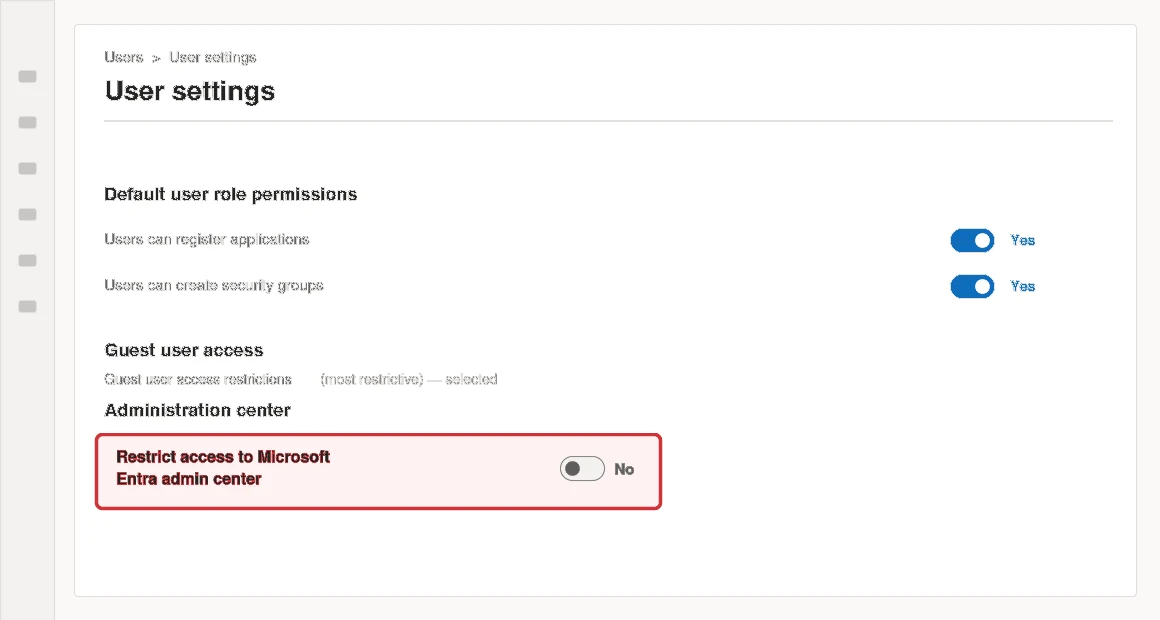
There’s a toggle in Entra ID that a lot of admins treat as the control that keeps standard users out of the directory: Restrict access to Microsoft Entra admin center, under Users → User settings. It isn’t. Microsoft says so directly in its own documentation — this setting is not a security measure — and after checking what it actually covers, I stopped treating it as one too.
Key takeaways
The “Restrict access” toggle only hides a handful of admin center pages from casual browsing — it does nothing to PowerShell, Microsoft Graph, or Graph Explorer, and nothing at all for anyone holding a role, including a custom one. By default, every standard member user can already enumerate all users, all groups and their membership, all devices, and every admin role assignment in your tenant. The real fix is Conditional Access on the Windows Azure Service Management API and on Microsoft Graph — built in report-only mode first, with break-glass accounts excluded.
What the toggle actually does
Left at the default (No), any standard user can sign in to the Entra admin center and browse: users, groups, memberships, role assignments, devices, applications. Switch it to Yes and Microsoft’s own description is precise about the effect: it adds “a layer of friction to casual browsing” by blocking a set of frequently visited pages — home, tenant overview, the users list — in the admin center and Azure portal. That’s the entire mechanism.
What it explicitly does not do, per Microsoft’s documentation:
- It does not block programmatic access to Entra data via PowerShell, the Microsoft Graph API, or tools like Visual Studio.
- It does not apply to any user holding an administrative role — including a custom role.
- It does not prevent all access to the admin center; most pages remain reachable with a direct link.
So flip it to Yes, and a standard user can still open Graph Explorer or run a PowerShell module and read exactly the same directory data they could before — they just can’t casually click around the admin center UI anymore.
What a standard user can already see
This is the part worth sitting with. Per Microsoft’s default permissions reference, a member user — with zero roles assigned — can by default:
- Enumerate the list of all users and contacts and read their public properties.
- Enumerate all groups, read their properties, and read nonhidden group membership.
- Enumerate all devices and read their properties.
- Read all administrative roles and their memberships — who your admins are.
- Enumerate all applications and read their properties, plus read all company information and domains.
None of that requires a role. It’s the default. One phished standard account, and an attacker already has a map of your admins, your group structure, and your lateral-movement options — before they’ve escalated anything. The toggle changes none of it.
What actually closes it: Conditional Access
Microsoft’s own guidance in the same documentation is direct: for real enforcement, use a Conditional Access policy targeting the Windows Azure Service Management API. This is the detail that trips people up — the Azure and Entra management surface is a separate cloud app from the “Microsoft Admin Portals” app most CA policies already cover, so a policy that looks comprehensive can still leave this door open.
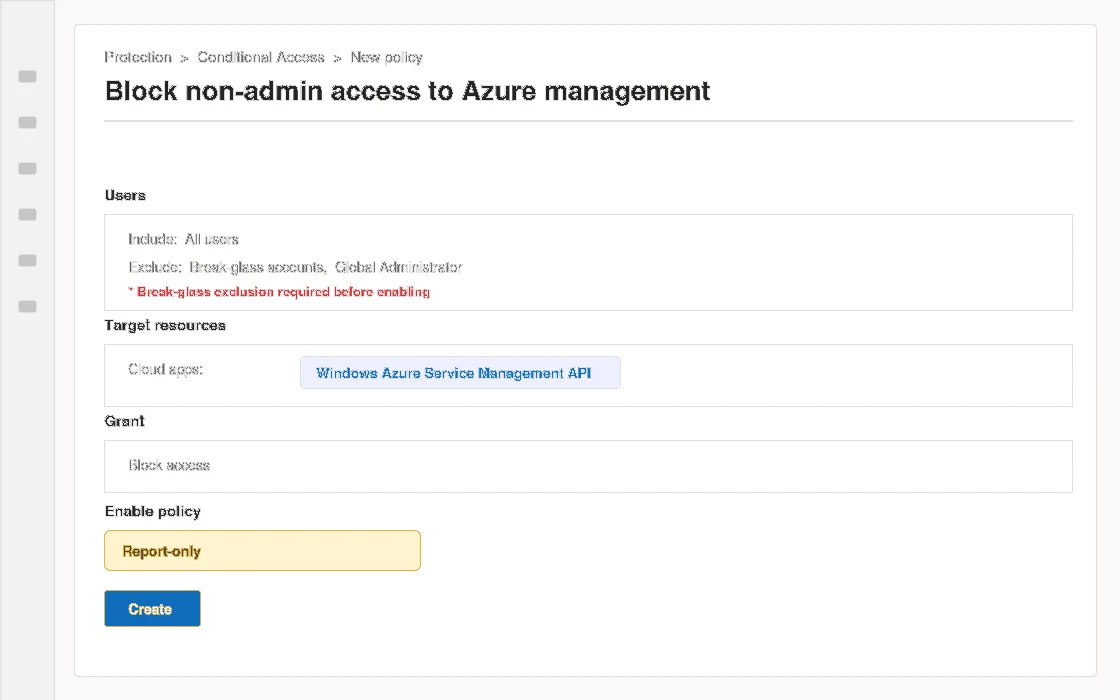
- Build the policy in report-only mode. Entra admin center → Protection → Conditional Access → New policy. Name it clearly — something like “Block non-admin access to Azure management.”
- Scope users: include All users, then exclude your break-glass accounts and the admin roles that legitimately need this access. Getting this exclusion wrong is how people lock themselves out of their own tenant.
- Scope the resource to Windows Azure Service Management API under Cloud apps — not “Microsoft Admin Portals,” which doesn’t cover this surface.
- Grant control: Block access, for everyone the policy applies to.
- Enable in report-only and leave it there for at least a week. Read the sign-in logs for anyone the policy would have blocked — a legitimate script, a service account, a role you forgot to exclude.
- Repeat the exercise for Microsoft Graph — either a broader Conditional Access policy targeting Graph itself, or the narrower fix: set User assignment required to Yes on the Graph Explorer and Microsoft Graph Command Line Tools enterprise application service principals, so only users you’ve explicitly assigned can authenticate through them at all.
- Switch from report-only to On once the logs are clean.
Two rules before you touch either policy
- Report-only first, always. Conditional Access changes take effect the moment you set them to On; report-only mode lets you see exactly who it would have blocked without actually blocking anyone.
- Exclude break-glass accounts from every policy you build here, without exception. If both the Azure management API and Graph get locked down and your break-glass account isn’t excluded from at least one path back in, you’ve built yourself a very bad afternoon.
Bottom line
The “Restrict access” toggle prevents accidents and casual snooping through the admin center UI — that’s a genuinely useful, low-friction thing to turn on. It does not prevent an attacker, or a curious standard user with the right tool, from reading your entire directory structure through Graph or PowerShell. Know which problem you’re actually solving before you decide the toggle is enough, and if you need the second one, Conditional Access on the Windows Azure Service Management API and Microsoft Graph — proven in report-only, with break-glass excluded — is where the real control lives.