Catalog Access Reviews in Microsoft Entra ID: A Setup Walkthrough

Access reviews used to mean picking one group, or one app, and asking a manager to eyeball a membership list — then doing it again for the next resource, and the next. Catalog access reviews (the feature behind “user-centric access reviews” in Microsoft Entra ID Governance) fix the part of that process that actually burns reviewer patience: they let a manager review everything a person can reach — groups, applications, and custom disconnected resources — in one pass, instead of five separate emails asking about five separate things.
Key takeaways
Put the resources you care about into an Entitlement Management catalog, then create an access review using the “review users access across multiple resource types within a catalog” template — that’s the Catalog review card, not the single-resource Resource review card. Reviewers approve or deny everything for a person in one screen at myaccess.microsoft.com, and decisions apply automatically on the end date. Requires a Microsoft Entra ID Governance or Entra Suite licence.
Resource review vs. catalog review — pick the right template
When you create a new access review in the Entra admin center, you’re asked to choose a template. Resource review is the classic flow: review access to one resource type — a group, an app, an Entra role. Catalog review is the one this post is about: it reviews a user’s access across every resource in a catalog at once, spanning Entra ID and Azure resources as well as non-Entra, non-Azure ones you’ve registered as custom data. If your reviewers are drowning in per-resource review emails for the same people, catalog review is the fix — it’s a scope change, not a different quality of review.
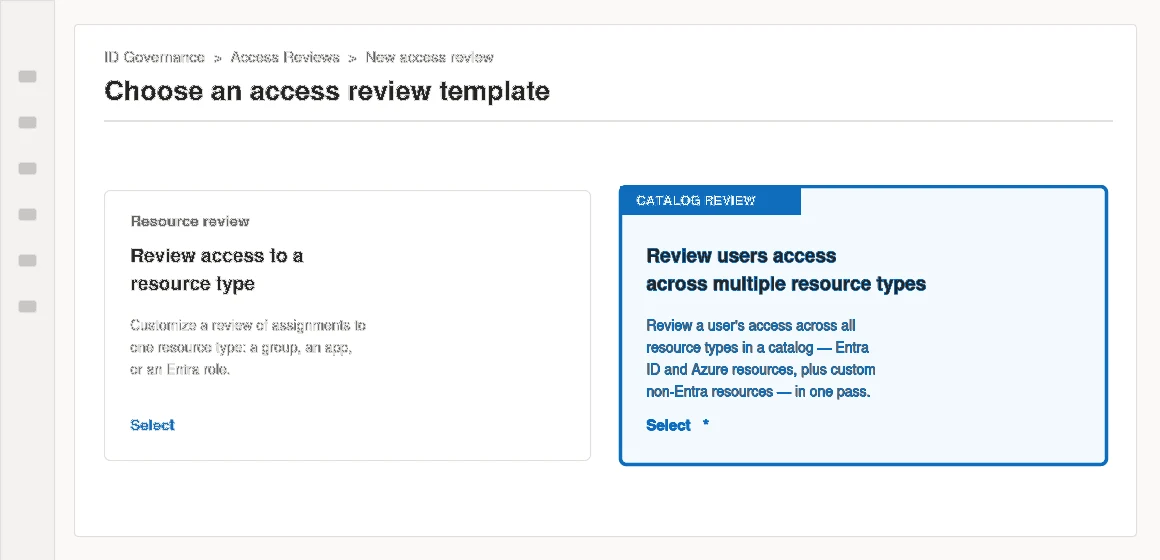
Step 1 — Put the resources in a catalog
A catalog access review can only review what’s already in a catalog, so this comes first.
- Sign in to the Microsoft Entra admin center as an Identity Governance Administrator (or a catalog owner).
- Go to Entitlement Management → Catalogs, and select an existing catalog or New catalog.
- On the catalog overview, go to Resources → Add resources.
- Add what you need reviewed: Groups and Teams for membership, Applications for app role assignments, or a Custom Data Provided Resource for anything outside Entra and Azure.
- Select Add to save them into the catalog.
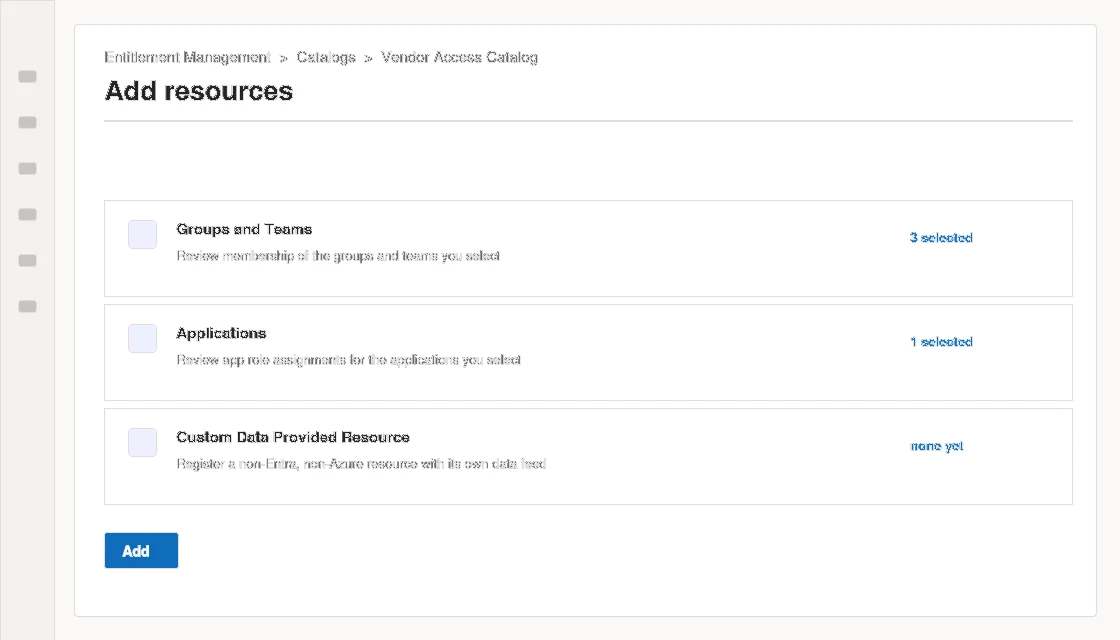
Only groups, applications, and custom data provided resources are supported in a catalog review — and changes to catalog membership inside the 12 hours before a review starts may not make it into that review instance, which has caught me out exactly once and never again.
Step 2 — Create the catalog access review
- Go to ID Governance → Access Reviews → New access review.
- On the template screen, choose “Review users access across multiple resource types within a catalog” — the catalog review card, not the resource review card next to it.
- Fill in the basic information (name, description) and select Next.
- On the Resources tab, select the catalog you built in Step 1 and select Next.
- On Reviewers and schedule, choose who reviews — typically each user’s manager. Optionally enable a multi-stage review so resource owners (the group or app owner) act as a second-opinion reviewer after the manager.
- Set the reviewer experience: email notifications, reminder cadence, and whether a justification is required for each decision.
- Set completion settings — what happens automatically if a reviewer doesn’t respond (approve, deny, or no change), and whether results auto-apply.
- Select Create.
If you have custom data provided resources in the catalog, you’ll need to upload that data while the review instance is initializing — it isn’t pulled automatically the way group membership and app assignments are.
How a reviewer actually completes it
This is the part that sells the feature to whoever’s been complaining about review fatigue.
- The reviewer gets an email pointing them to the My Access portal, or navigates there directly.
- In the left menu, they select Access reviews to see everything pending.
- They open the Multi-resource tab — that’s where catalog reviews live, separate from single-resource ones.
- For each access item under a person’s name, they choose Approve or Deny, with a justification if you required one.
- They select Submit once, for everything.
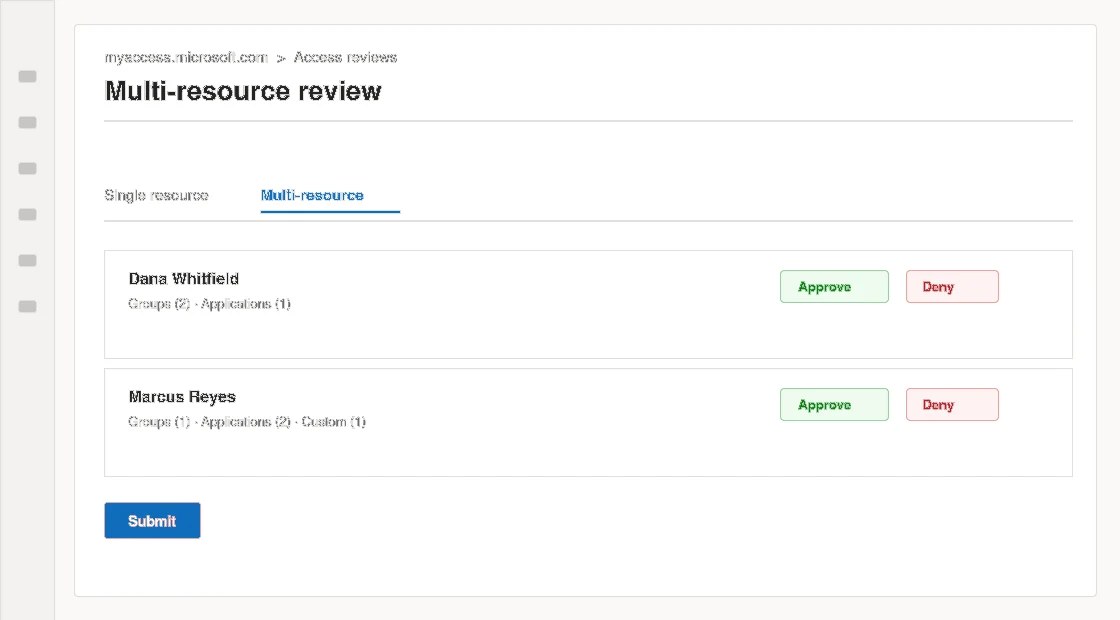
One person, one login, every group and app they touch reviewed in the same sitting — instead of a manager getting pinged separately for the Finance group, the expense app, and the VPN role, each with its own deadline to track.
What happens at the end date
On the review’s end date, decisions are applied automatically — access is removed for anything denied, kept for anything approved — with one exception: custom disconnected resources don’t auto-apply, since Entra has no API to revoke access it never granted in the first place. Whatever process feeds that custom resource has to act on the decision itself.
Licensing
Catalog access reviews require a Microsoft Entra ID Governance or Microsoft Entra Suite licence for the users involved — the same licensing tier that gates entitlement management and Privileged Identity Management. If you already run PIM or access packages, you likely already have it.
Bottom line
Catalog access reviews don’t change what a review decision means — approve or deny is still approve or deny. What they change is the reviewer’s experience: one catalog, one login, one submit, for every resource a person touches. If your managers are quietly ignoring the third access-review email of the month, this is the fix, and the setup is one catalog and one template choice away from what you’re probably already running today.