Converting a macOS DMG to a Signed PKG for Microsoft Intune

Upload a DMG-packaged app as a macOS line-of-business app in Intune and it’ll often sit there failing silently or get rejected outright. The reason isn’t mysterious or random — Microsoft’s own requirements for a macOS LOB package explicitly rule out a payload that’s a disk image or an app bundle. The fix is to repackage the app as a component PKG, and there’s one step most quick tutorials on this skip entirely that will bite you the moment you actually try to deploy it: the package has to be signed.
Key takeaways
A macOS line-of-business app in Intune must be a component .pkg — Microsoft’s requirements explicitly disallow a package that contains a disk image or a raw .app bundle, which is why a DMG upload fails. productbuild --component converts an installed app into a component PKG in one command, but the output is unsigned by default. Intune’s LOB requirements call for the PKG to be signed with a Developer ID Installer certificate from an Apple Developer account — skip that and the repackaged app can still fail at the exact same hurdle you were trying to fix. If you don’t need the “install as managed”/uninstall behavior LOB apps offer, Intune’s native DMG app type may be the simpler path and needs no repackaging at all.
Why the DMG fails as a line-of-business app
Per Microsoft’s own documentation, a macOS LOB app’s .pkg file has to meet four requirements: it must be a component package (or a package of packages), it must not contain a bundle, disk image, or .app file, it must be signed with a Developer ID Installer certificate, and it must actually contain a payload. A DMG fails requirement two outright — it’s a disk image containing an .app, exactly what the LOB format excludes. That’s the real mechanism behind the vague “may not install correctly” admins run into, not bad luck.
Worth knowing before you reach for productbuild: Intune also has a native DMG app type that deploys a DMG directly, no repackaging required. It’s the simpler option if you don’t need the LOB-specific features — managed-app install and the ability to target an explicit uninstall. If you do need those, converting to a signed PKG is the way in.
Converting the app to a PKG
The example below uses Google Chrome, converted on a Mac with a French system locale — the mechanism is identical regardless of display language.
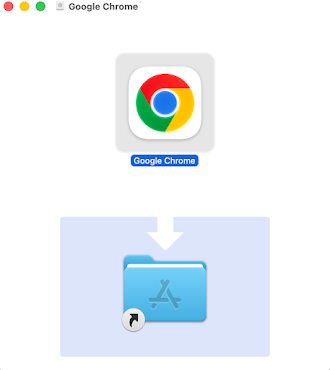
Open the DMG and drag the app into Applications first — productbuild --component packages an already-installed app, not the DMG itself.
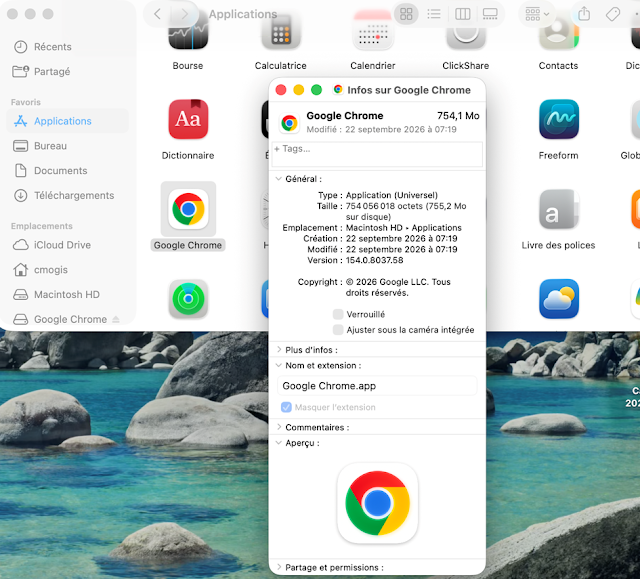
Confirm the exact app name under Name & Extension in the Get Info panel. Case and spacing have to match exactly in the command below, or productbuild won’t find it.

sudo productbuild --component /Applications/"Google Chrome.app" ~/Downloads/PKG/"Google Chrome.pkg"

The step that actually determines whether Intune will accept it: signing
The PKG that command just produced is unsigned. It’ll install fine locally with sudo installer -pkg, which is exactly why this approach looks like it worked in a lot of walkthroughs — but Intune’s LOB requirements are explicit that the package must be signed with a Developer ID Installer certificate issued through an Apple Developer Program account (not a Developer ID Application certificate — installer signing is a separate certificate type). Without it, you’ve traded one deployment failure for another that surfaces later, either at upload or on the managed Mac itself.
With the certificate already in your keychain, add --sign to the same command:
sudo productbuild --component /Applications/"Google Chrome.app" --sign "Developer ID Installer: Your Name (TEAMID)" ~/Downloads/PKG/"Google Chrome.pkg"Find your exact certificate identity first with security find-identity -v -p basic — copy the name string precisely as it’s listed, including the team ID in parentheses.
Verify before you upload
- Confirm the signature:
pkgutil --check-signature "Google Chrome.pkg"— it should report a valid Developer ID Installer signature, not “no signature.” - Confirm the bundle ID and version Intune will use for install detection:
defaults read "/Applications/Google Chrome.app/Contents/Info" CFBundleIdentifierand the matchingCFBundleShortVersionString. These need to show up correctly in the Included apps list when you upload — Intune only reports a successful install when every app listed there is actually detected on the device. - Only install as managed (if you want the uninstall assignment option) when the PKG installs a single app with no nested packages, straight into
/Applications— which is exactly whatproductbuild --componentproduces.
Bottom line
A DMG isn’t broken and Intune isn’t being unreasonable — a LOB app has a narrower, more auditable format than a general-purpose installer, and a disk image carrying a raw .app doesn’t meet it. productbuild --component gets you the right container in one command, but stopping there just moves the failure point from “won’t accept the upload” to “won’t pass Gatekeeper or the signing requirement” on the managed fleet. Sign it with a real Developer ID Installer certificate before it goes anywhere near a production assignment.