Windows 11, Version 26H2 Gallery Images Are Now Available for Windows 365 Cloud PCs
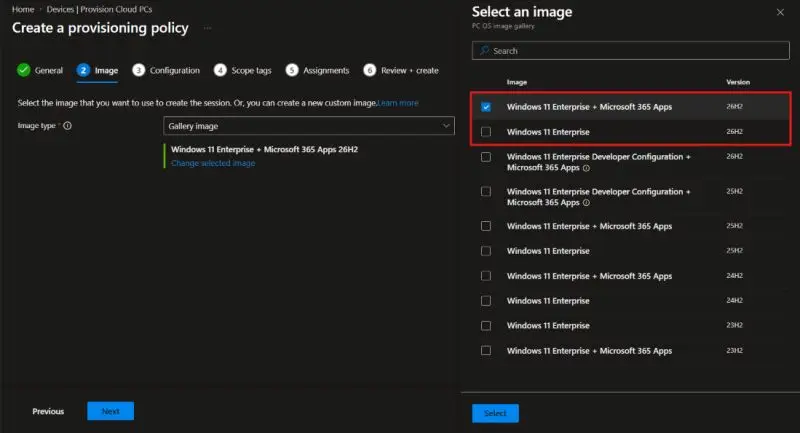
Windows 11, version 26H2 went generally available on September 29, and the gallery images for Windows 365 just caught up: Windows 11 Enterprise 26H2 and Windows 11 Enterprise + Microsoft 365 Apps 26H2 are now selectable in the Intune provisioning policy wizard. If you manage Cloud PCs alongside physical endpoints, here’s what actually changes and what doesn’t.
Key takeaways
New Windows 365 provisioning policies can select a 26H2 gallery image today, in Devices > Provision Cloud PCs > Create a provisioning policy > Image. New Cloud PCs provisioned from that policy get 26H2 immediately — but existing Cloud PCs don’t move to a new image on their own; they only pick it up if you reprovision them, and reprovisioning wipes the OS disk. That distinction matters more for Cloud PCs than for physical devices, because there’s no equivalent of an in-place feature update here — it’s provision-fresh-or-stay-put.
What actually showed up
The gallery image list in the provisioning policy wizard now carries two new entries: a plain Windows 11 Enterprise 26H2 image and Windows 11 Enterprise + Microsoft 365 Apps 26H2, which comes with Microsoft 365 Apps and the Teams optimizations (WebRTC redirector, Teams media offload settings, Outlook first-run configuration) preinstalled. Both sit in the same list as the 25H2, 24H2, and 23H2 options — Microsoft doesn’t retire the older gallery images the moment a new one lands, so existing provisioning policies pointed at 24H2 or 25H2 keep working exactly as they were.
Gallery images in Windows 365 aren’t a one-time snapshot, either — Microsoft patches them monthly with the latest cumulative update and app versions, and the update lands in Intune around the third week of each month. A gallery image is a moving target by design, which is part of why Microsoft recommends them over hand-rolled custom images unless you have a specific reason to deviate.
The distinction that matters: new policy vs. existing Cloud PC
This is the part that trips people up coming from physical-device patching, where 26H2 installs as a small enablement package on top of 24H2/25H2 with a single restart — no reimage required. Windows 365 doesn’t work that way. Selecting a 26H2 image only affects new Cloud PCs provisioned from that policy going forward. An existing Cloud PC that was provisioned on 24H2 stays on 24H2 indefinitely unless you explicitly reprovision it — and reprovisioning rebuilds the Cloud PC from the image, wiping the OS disk in the process. There’s no in-place upgrade path for a Cloud PC the way there is for a physical endpoint; it’s provision-fresh-or-leave-it.
Practically, that means a user’s local profile and anything stored outside of redirected locations (OneDrive, a network share, Known Folder Move) doesn’t survive a reprovision. If your Cloud PC fleet isn’t already relying on cloud-redirected profiles, moving an existing policy to a 26H2 image and then reprovisioning in bulk is a good way to generate a wave of “where are my files” tickets.
Should you switch today?
- New provisioning policies: pointing them at 26H2 is low-risk — you’re not touching anything already running, and you get the current servicing branch from day one.
- Existing policies, no urgent reason to move: there’s no rush. The 24H2/25H2 images keep receiving monthly updates, and 26H2 is mostly a support-lifecycle reset plus a handful of features that ship off by default anyway — see the full 26H2 rundown for what’s actually in it.
- Existing policies you do want to move: create a new provisioning policy against the 26H2 image, pilot it against a small Cloud PC group, and confirm user profile redirection is actually working before reprovisioning anyone’s primary Cloud PC.
Bottom line
The 26H2 gallery images are a welcome, low-drama addition — nothing about your existing Windows 365 fleet changes on its own, and new provisioning policies can adopt the current servicing branch immediately. The one thing worth being deliberate about is reprovisioning: it’s the only way an existing Cloud PC reaches a new image, and it behaves nothing like the single-restart enablement package that moves a physical Windows 11 device between versions.