How to Enforce a macOS Screen Lock with Microsoft Intune
“Every Mac locks its screen after five minutes and needs a password to get back in” is one of the simplest compliance controls to write down and one of the most annoying to actually enforce — because macOS won’t do it on its own and users won’t do it for you. This is how I enforce it fleet-wide with Microsoft Intune’s Settings Catalog, which is the clean way to do it in 2026 (no custom property lists, no configuration-profile XML to hand-edit).
Key takeaways
Use an Intune Settings Catalog profile for macOS with two things set: Login Window → Login Window Idle Time (seconds until the screen saver starts, e.g. 300 for five minutes) and Screensaver → Ask For Password = true with Ask For Password Delay = 0. Assign it to a device group, and confirm it landed with profiles show on a Mac. That satisfies CIS Level 1 and the “screen locks and needs a password” line in almost every audit.
Screen saver vs. screen lock — the distinction that trips people up
macOS doesn’t have a single “lock after X minutes” setting. It has a screen saver that starts after an idle period, and a separate rule for whether a password is required to dismiss the screen saver (or wake from sleep) and how quickly that requirement kicks in. “The screen locks” is the combination of the two: screen saver starts after idle time, and a password is required immediately after. Configure only the idle time and you get a screen saver that anyone can click away. Configure only the password requirement and nothing happens until the user manually starts the screen saver. You need both.
Why Settings Catalog and not a custom profile
You can still do this with a hand-built .mobileconfig targeting the com.apple.screensaver and com.apple.loginwindow preference domains, and for years that was the only option. The Settings Catalog now exposes these same payloads as named, documented settings with validation — which means no XML, no guessing at key names, and a profile that other admins can actually read. Unless you have an edge case the catalog doesn’t cover, use the catalog.
Building the profile — step by step
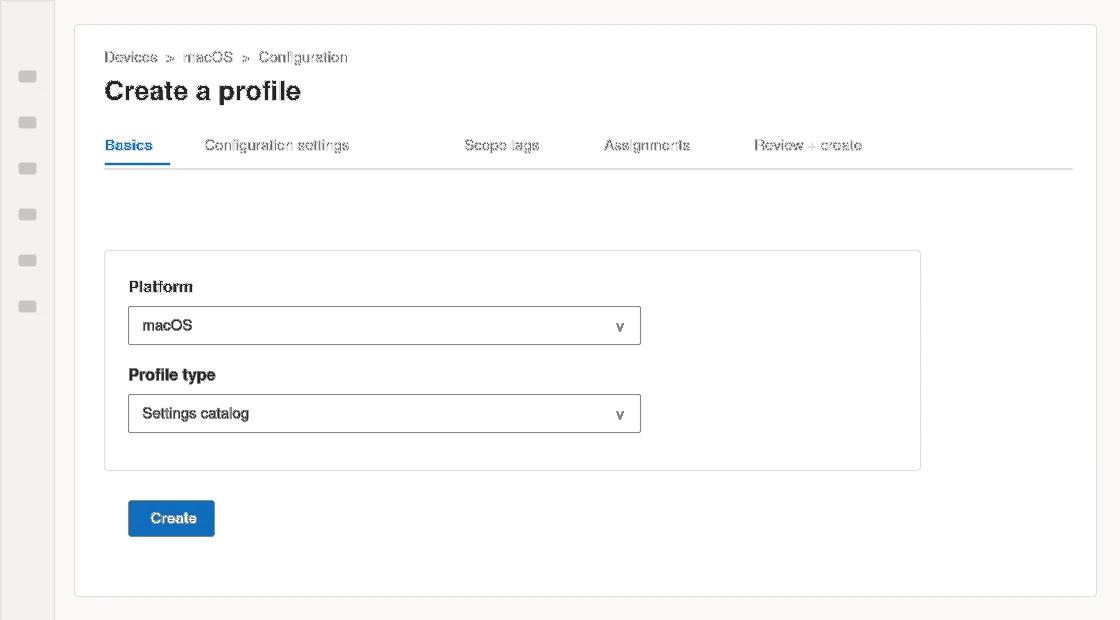
- Open the profile creator. In the Intune admin center, go to Devices → Configuration → Create → New Policy. Platform: macOS. Profile type: Settings catalog. Click Create.
- Name it something future-you will understand. Something like
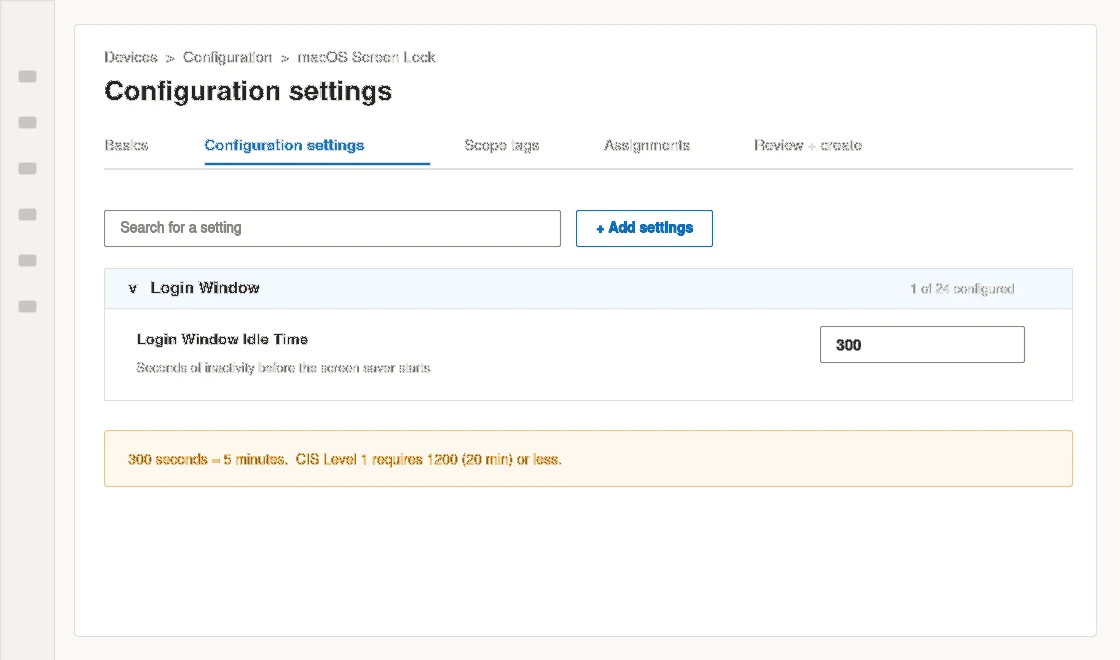
macOS — Screen Lock (5 min, password required). A vague name like “Screensaver Policy” is how you end up with three overlapping profiles nobody wants to touch. - Add the idle-time setting. Click Add settings, search for Login Window, and from the Login Window category select Login Window Idle Time. Set it to the number of seconds before the screen saver activates —
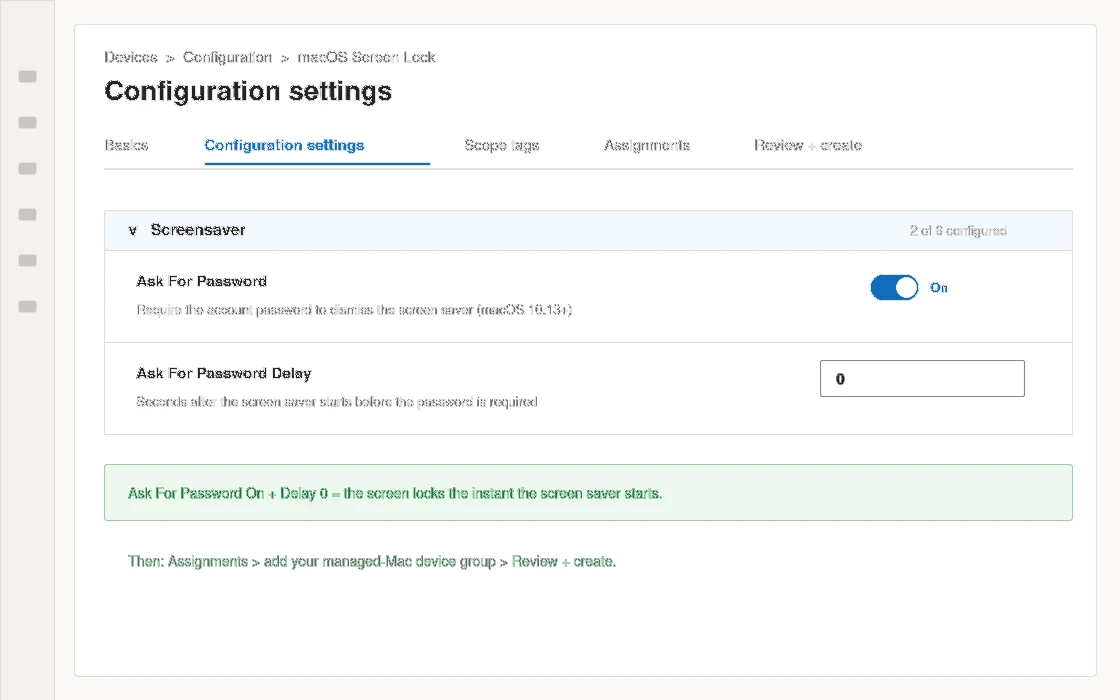
300for five minutes,600for ten. CIS Level 1 wants this at 1200 (20 minutes) or less; I use 300 in regulated environments. - Add the password requirement. Search for Screensaver and from the Screensaver category add two settings: Ask For Password (set to True) and Ask For Password Delay (set to 0 for an immediate lock). A non-zero delay is a grace period where the screen saver is up but no password is needed yet — useful for shared kiosks, a liability everywhere else.
- Leave the user-context screen saver settings alone unless you need them. The catalog also has a Screensaver User category under User Experience with its own Idle Time. The device-scoped Login Window setting from step 3 is what you want for enforcement; the user one is easy to set to a conflicting value by accident.
- Skip scope tags (unless your tenant uses them for delegated admin), then move to Assignments.
- Assign to a device group. Add your managed-Mac group under Included groups. Device-group assignment is right here because a screen lock should follow the machine, not the person — a shared Mac still needs to lock.
- Review and create. The profile applies the next time each Mac checks in with Intune — usually within a few minutes on an active device, up to 8 hours on one that’s been asleep.
What each value actually does
- Login Window → Login Window Idle Time — seconds of no keyboard/mouse activity before the screen saver starts. This is the “5 minutes” number. Domain:
com.apple.screensaver/ login window context. - Screensaver → Ask For Password — whether dismissing the screen saver (or waking the display) requires the account password. Set True. Applies to macOS 10.13 and later.
- Screensaver → Ask For Password Delay — seconds after the screen saver starts before the password becomes mandatory. 0 = lock immediately. The maximum is absurdly large; anything over a minute defeats the purpose.
Verifying it worked
Don’t trust the Intune report alone — it tells you the profile was delivered, not that the behaviour is right. On a target Mac:
- Run
profiles show(orsudo profiles show -type configuration) and confirm your profile appears with the screensaver and login window payloads. - Check the effective values:
defaults -currentHost read com.apple.screensaver idleTimeshould return your idle seconds, andaskForPasswordshould be1. - Actually walk away from the Mac for the idle period and confirm the screen saver starts and asks for a password when you come back. Test the machine, not the console.
Gotchas from doing this at scale
- User-context settings need a login first. Anything under “Screensaver User” only applies after the user has signed in at least once. Device-scoped settings apply immediately — another reason to prefer them.
- macOS Sonoma and later changed screen saver / wallpaper handling. The password-and-idle enforcement still works, but if you were also managing the module (which screen saver plays), re-test that part on current macOS.
- Conflicting profiles win unpredictably. If an old custom
.mobileconfigand the new catalog profile both setidleTime, the result is not guaranteed. Retire the old one rather than layering. - “Require password” also covers sleep and display-off, not just the screen saver — which is what you want, and worth knowing when a user complains their Mac “locks too fast” because they set display sleep to two minutes.
Bottom line
Two settings in one Settings Catalog profile — idle time and require-password-immediately — assigned to a device group, is the whole job. It maps directly to CIS Level 1 and to the screen-lock control in every compliance framework I’ve been audited against, and it takes about five minutes to build. The only real work is deciding your idle number and then actually testing it on a Mac instead of trusting the dashboard.