External Threat Detection for Copilot Studio Agents: A Setup Walkthrough

Copilot Studio agents ship secure by default — they block user prompt-injection (UPIA) and cross-domain prompt-injection (XPIA) attacks at runtime on their own. But if you work anywhere with a real compliance obligation, “secure by default” isn’t the same as “monitored,” and you’ll eventually be asked what watches the agent while it runs. Microsoft’s answer is external threat detection: a second system that inspects every tool call the agent is about to make and can veto it. Here’s how the integration is wired up.
Key takeaways
External threat detection lets you plug a REST endpoint (your own, Microsoft Defender, or a third-party provider) into a Copilot Studio agent so that every proposed tool invocation is sent out for an allow/block decision at runtime. Setup is two parts: register a Microsoft Entra app with a Federated Identity Credential (no client secret), then point the agent at it from the Power Platform admin center — per environment. It only applies to generative agents using generative orchestration, and there is no tenant-wide switch.
How it works
The threat detection system is a web service exposing a REST API. You configure a secure connection between the agent and that endpoint. Then, at runtime, every time the orchestrator is about to invoke a tool, it sends the relevant context out to the endpoint and waits for a verdict:
- Allow — the agent proceeds, and the user sees nothing.
- Block — the agent stops processing immediately and tells the user their message was blocked.
If the endpoint doesn’t answer within one second, the default is to allow the tool to run — which you can change to fail-closed (see step 3).
Before you touch anything, know the limits
- Generative orchestration only. External threat detection is called for generative agents that use generative orchestration. It is skipped entirely for classic agents.
- Per environment. There is no global or tenant-wide setting. You turn it on manually for each environment, and again for every new environment you create later. No PowerShell, API, or admin-center switch propagates it.
- It’s preview. This is prerelease documentation and subject to change — don’t build a production dependency on the exact field values below without checking the current Microsoft Learn page.
What leaves your tenant
This is the part your security and privacy people will care about. Once connected, the agent shares the following with the provider on every tool-invocation check:
- The user’s recent prompt and the latest chat history between the user and the agent.
- Outputs of tools the agent has already run in this turn.
- Conversation metadata — the agent’s identity, the user, the user’s tenant, and the trigger.
- The tool the agent wants to call, the agent’s own reasoning for choosing it, and the proposed input values.
The provider’s data-handling terms may differ from Microsoft’s, including processing or storing data outside your region. Treat onboarding a provider here like onboarding any other subprocessor: check the terms against your obligations first. You can disconnect at any time to stop the data sharing.
Prerequisites
- An external threat detection service with a REST API endpoint. You get the base URL (“the endpoint”) from your provider — or, for Microsoft Defender, from the Defender portal.
- A Microsoft Entra tenant where you can register an application.
- A user with the Power Platform Administrator role.
Step 1 — Register a Microsoft Entra application
Microsoft ships a PowerShell script (Create-CopilotWebhookApp.ps1) that automates the whole Entra side, and it’s the recommended path. If you’d rather do it by hand:
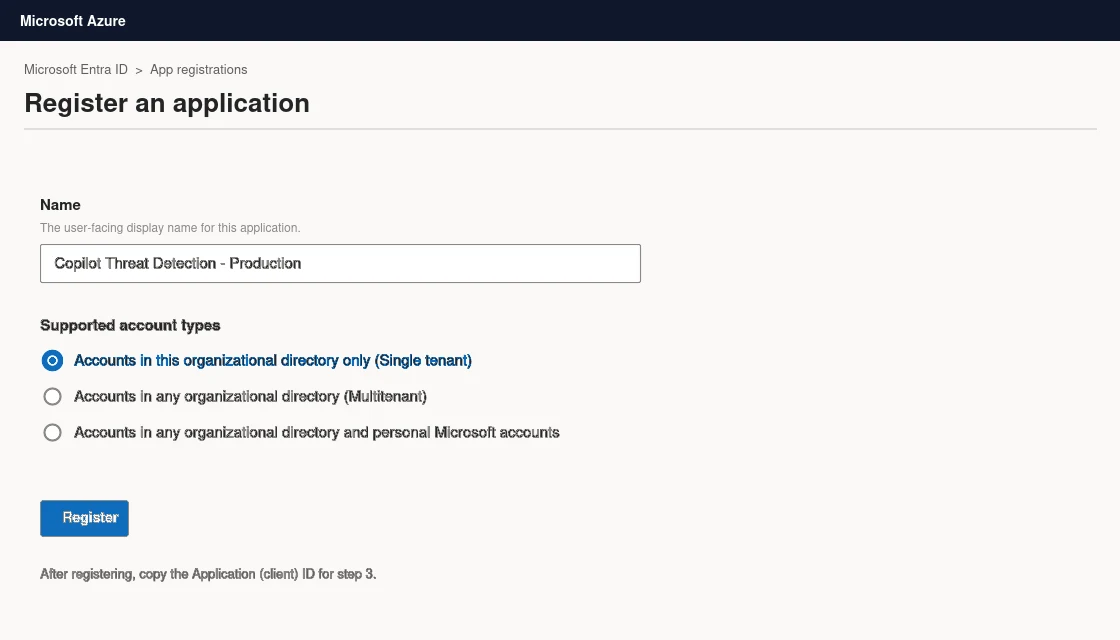
- In the Azure portal, go to Microsoft Entra ID → App registrations → New registration.
- Give it a name, and set the supported account type to Accounts in this organizational directory only (Single tenant).
- Register the app, then copy the Application (client) ID — you need it in step 3.
Step 2 — Add a Federated Identity Credential
The agent authenticates to your endpoint with a Federated Identity Credential (FIC) — a secret-less method, so there’s no client secret to rotate or leak.
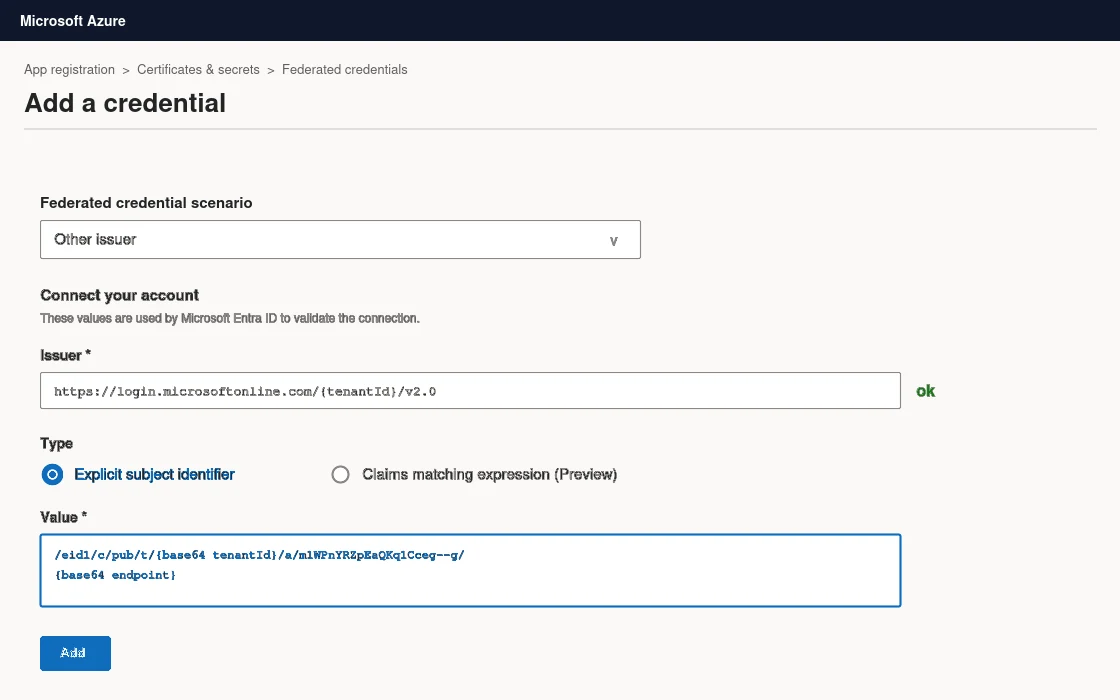
- In your app registration, open Manage → Certificates & secrets → Federated credentials and select Add credential.
- In Federated credential scenario, choose Other issuer.
- Issuer:
https://login.microsoftonline.com/{tenantId}/v2.0— substitute your tenant ID. - Type: Explicit subject identifier.
- Value:
/eid1/c/pub/t/{base64 tenantId}/a/m1WPnYRZpEaQKq1Cceg--g/{base64 endpoint}— where the two placeholders are the base64url encoding of your tenant ID and your endpoint URL. Copy the exact app-identifier segment from the current Microsoft Learn article; it’s a fixed Microsoft value, not something you generate. - Give the credential a name and save it.
To produce the two base64url values, run this in PowerShell with your real tenant ID and endpoint:
# Tenant ID
$tenantId = [Guid]::Parse("11111111-2222-3333-4444-555555555555")
[Convert]::ToBase64String($tenantId.ToByteArray()).Replace('+','-').Replace('/','_').TrimEnd('=')

# Endpoint URL
$endpointURL = "https://provider.example.com/threat_detection/copilot"
[Convert]::ToBase64String([Text.Encoding]::UTF8.GetBytes($endpointURL)).Replace('+','-').Replace('/','_').TrimEnd('=')
Watch for trailing whitespace or blank lines in the Value field — a stray space is the most common reason the subject doesn’t match at runtime.
/eid1/c/pub/… subject value built from your base64 tenant ID and endpoint. (Illustration.)Step 3 — Connect the agent in the Power Platform admin center
- Sign in to the Power Platform admin center.
- Go to Security → Threat detection, then select Additional threat detection.
- Pick the environment you want to protect and select Set up.
- Tick Allow Copilot Studio to share data with a threat detection provider.
- Under Azure Entra App ID, paste the App ID from step 1.
- Enter the Endpoint link — the same base URL you used when building the FIC.
- Under Set error behavior, choose what happens when the endpoint times out or errors: Allow the agent to respond (default) or Block the query (fail-closed — the stricter choice).
- Select Save. If the save fails, your Entra app or FIC isn’t configured correctly, or the app isn’t authorized with your provider yet.
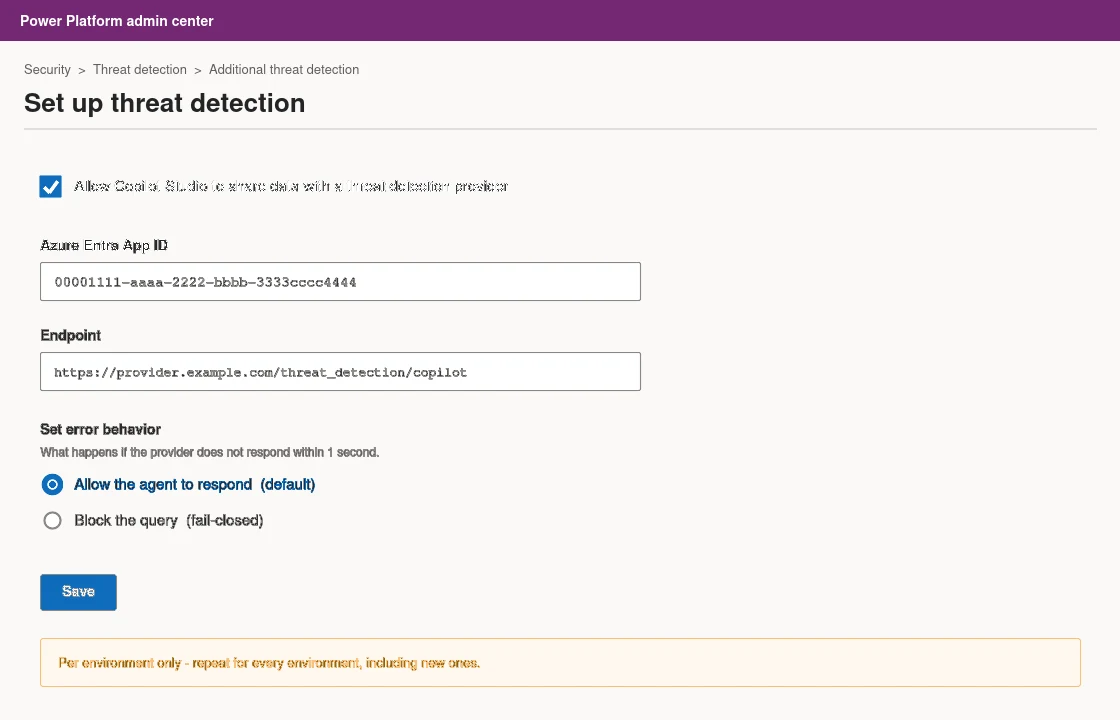
Repeat step 3 for every environment you want covered, now and whenever you create a new one.
Troubleshooting the save
- AADSTS700016 — application not found: wrong App ID, or the app is in a different tenant. Recheck the ID.
- AADSTS70025 — no configured federated identity credentials: you skipped step 2, or added the FIC to the wrong app.
- AADSTS7002111 — issuer mismatch: the FIC Issuer must be exactly
https://login.microsoftonline.com/{tenantId}/v2.0with your tenant ID filled in. - AADSTS7002137 — subject mismatch: the FIC Value doesn’t match what the runtime presents. Re-derive the base64url values and check for whitespace.
- “Application ID doesn’t match the registered application” (Defender): the app isn’t allowlisted with the provider — follow the provider’s steps to grant it webhook access.
Bottom line
External threat detection is Copilot Studio’s version of a runtime security review board — every tool call gets a vote before it executes. The mechanics are standard Entra federated auth, so if you’ve wired up a secret-less app registration before, none of this is new; the work is deciding your fail-open vs fail-closed posture, vetting the provider as a subprocessor, and remembering that it’s per-environment forever. For a regulated Copilot Studio deployment, it’s the control that turns “the platform blocks known attacks” into “we monitor and can prove it.”